Accounts and plans
Your account
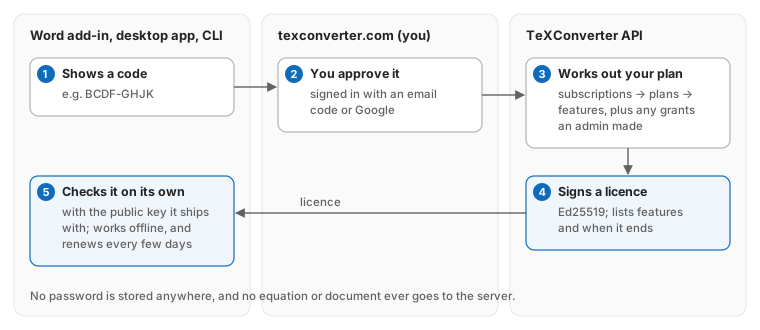
A TeXConverter account is your email address. There is no password: you sign in on texconverter.com with a one-time code we email you, or with Google. The same account works in the Word add-in, the desktop app and the command line.
Your account page shows your plan, the devices signed in (with which version of the app each has, and whether an update is waiting), the browsers signed in to the website, and your payments. Sign out everywhere else there signs out every other browser. You can delete your account there; your personal details are removed, and only the payment records the law requires us to keep stay, under an anonymous id.
The same everywhere
Signed in, every app follows the account as it changes, within seconds and with nothing to reload: a plan bought on the website unlocks Word and the desktop app, credits used in one show in the others, and a device removed on the account page signs out.
Your work lists what you made in any of them: equations, graphs, tables and diagrams you insert in Word, or save or copy on the website's Try page or in the desktop app, and your Create with AI creations. Open one to carry on with it in the app you're in; rename, pin or delete it, and that happens everywhere. Your Recent symbols, the figure grid, the last diagram, graph and table you were working on, and your settings follow you too. Made while offline, it's saved when the app is back online; changed in two places at once, both versions are kept.
The website's Try page is fully private while you're signed out: it connects to nothing.
The command line lists Your work too: texconverter work, and texconverter work get <id> to
print one (see Desktop app and command line).
Plans
Every account starts on Free. Each subject plan adds that subject's symbols and templates, and the features that work across subjects. Current prices are on the Plans page.
| Feature | Free | Maths, Physics or Chemistry | All Subjects |
|---|---|---|---|
| Common symbols: Greek, structures, operators, relations, arrows, matrices | ✓ | ✓ | ✓ |
| LaTeX → Word equations, at the cursor or across a selection | ✓ | ✓ | ✓ |
| Equation → LaTeX | ✓ | ✓ | ✓ |
| The subject's own palettes (e.g. Maths: functions, sets and logic, calculus) | that subject | all three | |
| Whole-document conversion, both directions; desktop app and command line | ✓ | ✓ | |
Opening and saving .tex files in Word |
✓ | ✓ | |
| Diagrams: graphs, figures, chemical structures and reactions | on the website | ✓ | ✓ |
| Maths & statistics tables: normal, t, chi-square, F, binomial, Poisson; logarithms, trigonometric and more; your own tables | ✓ | ✓ | |
| Create with AI: diagrams and equations from a description, LaTeX or a diagram from a photo | on the website | ✓ | ✓ |
| AI credits a month | 5 | 30 | 75 |
| Saved AI creations | 20 | 200 | 200 |
| Devices | 2 | 3 | 3 |
Free access offers. From time to time TeXConverter may give everyone, or every new account, a plan free for a while (the Plans page says so while an offer is on). Your account page then shows the plan and the date it's free until. You don't need a card or a new account, nothing is charged, and when it ends you're back on your own plan, Free or paid, with nothing lost. If you already pay, your subscription carries on as before; you can buy a plan during the offer too.
What each plan includes is set on our side, not built into the apps, so a plan can gain a feature without you installing anything: your apps pick it up at their next check. A plan can also give a feature in some places only: Free gives Diagrams and Create with AI on the website, and in Word and the desktop app they show locked, with Upgrade. The Plans page marks these.
Create with AI and credits
Create with AI writes a diagram or an equation from a description, reads the maths in a photo, or redraws the graph, diagram, circuit or structure in a photo, as LaTeX. It's on the website (Create with AI in the menu), in the Word pane and in the desktop app. What it writes opens in the usual editor with a live preview, so you check it, and change it if you like, before inserting or saving it. It is drawn by TeXConverter's own converter, as anything you type is.
Each use takes credits. Your plan gives some every month; they renew at midnight India time on the 1st, and what's left doesn't carry over. When they run out, top-up credits are on the Plans page. Top-up credits never expire, and a use takes this month's credits first. If the AI can't make something TeXConverter can use, you aren't charged. Your account page shows your credits and when they renew.
What you create is saved under Your creations on the AI page, so you can open it again, copy it or download it. Your plan keeps your last 20 (Free) or 200 (paid plans); when the list is full, the oldest one makes room. Pin one to keep it, and delete any you don't want. Only the LaTeX is saved: the picture is drawn again from it. One made from a photo also keeps that photo for a while (90 days at present, longer if pinned): Use photo puts it back to crop and send again, and the same photo cropped the same way for the same thing gets its saved result back at once, without asking the AI (free, unless the admin says repeats cost credits).
You can edit a result on its picture too: click part of a diagram to edit the line that drew it, drag a part placed by plain numbers to move it, double-click a label to change its words, and Undo or Redo any of it; click part of an equation to edit that part. A selected part shows a dot on each of its points: drag one to move just that point (turn a level arrow into a slanted one, resize a rectangle by its corner, hold Shift to keep it level, upright or at 45°), or the dot on a circle's edge to size it. Shift-click parts, or drag a box round them, to select several and move them together. The bar under the picture duplicates what's selected (Ctrl+D), puts it in front or behind, deletes it, and sets its colour, fill, line width, dashes and arrows; Ctrl+C, Ctrl+X and Ctrl+V copy, cut and paste parts, from one diagram to another too. The same bar turns what's selected a quarter or mirrors it, lines several up by an edge or a middle or spaces them evenly, and groups them (Ctrl+G) so they're selected and moved as one; click a group again to pick a part inside it. Drag the dot above what's selected to turn it to any angle (Shift: steps of 15°): a rectangle turned at a slant becomes a four-sided path. Above the picture, Draw adds a line, an arrow, a rectangle, a circle or a label where you drag or tap, and Grid snaps to a grid; a dragged point also snaps onto another part's point near it (hold Alt to stop it). Signed in, the bar also has Change with AI: select parts, say how to change them ("make the wheels bigger", "add a velocity arrow for the man") and the AI changes only those, checked to draw before you see it. It takes credits (1 at present); nothing is taken if it doesn't work, and Undo puts it back.
Edit a result's LaTeX and Save puts your edit in its place in Your creations (the same photo asked again then gets your edit back), or Save as new keeps both. Saving is free, and only LaTeX that draws or converts can be saved; the page asks before you leave with an edit not saved.
Your description or photo is sent to TeXConverter's server and to the AI provider we use to write the LaTeX: Anthropic (Claude models) or Google (Gemini models); see the privacy policy. Nothing else in TeXConverter sends what you write anywhere.
Buying, changing and cancelling
You buy a plan on the Plans page; payment is handled by Razorpay, and TeXConverter never sees your card, bank or UPI details. Your apps unlock within a minute (open Account in the pane to check at once).
Cancel from your account page at any time. You keep the plan until the end of the period you have paid for, and you are not charged again.
Devices
Each plan allows a number of devices signed in at once: a Word installation, a desktop app or a command line on one computer each count as one. Sign one out from the device itself (Account → Sign out of this device) or from your account page, to make room for another.
Working offline
When an app signs in, the server gives it a licence: a short statement of what your plan includes and until when, signed so the app can check it without asking anyone. The app renews it every few days whenever it is online. Offline, it carries on with the licence it has; if that runs out before the app can reach the server, the free features stay on and the rest come back the moment it reconnects.